

Ferdausur Rahman 👋
How I Use Figma Auto Layout to Speed Up My UI Workflow
Jun 28, 2025
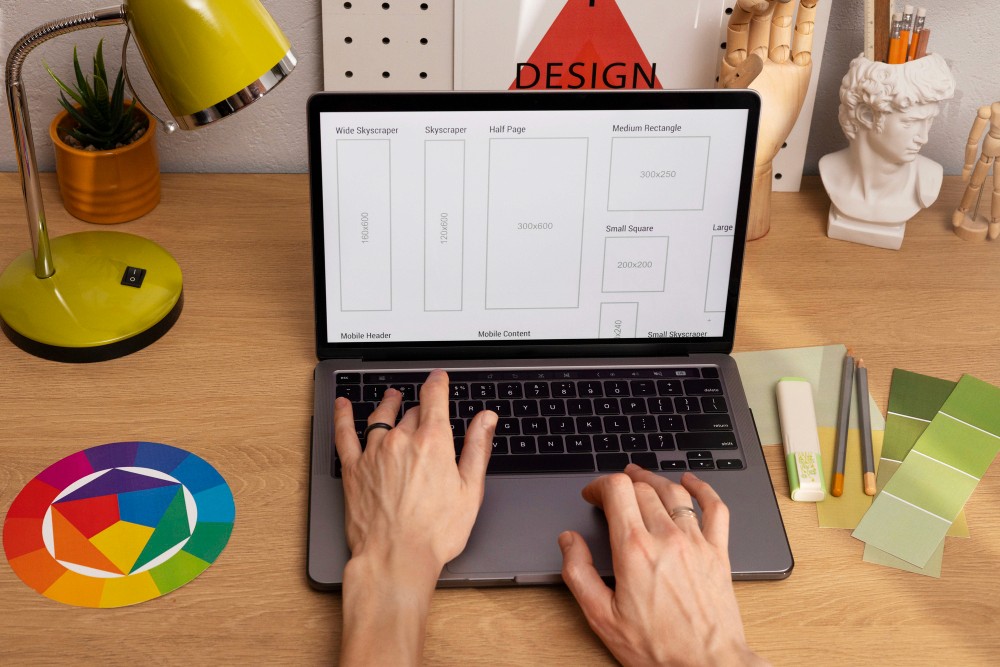
As a UX/UI Designer, Figma is my go-to tool, and one of its most powerful features is Auto Layout. It helps me create flexible, scalable designs — saving time and ensuring consistency.
Here’s how I use Auto Layout in my daily workflow:
1️⃣ Faster Responsive Design
Auto Layout adjusts elements automatically when I resize frames. Whether it's a button, card, or section, everything stays aligned without manual tweaks.
Example: Designing for both mobile and desktop views becomes seamless with Auto Layout.
2️⃣ Consistent Spacing Made Easy
Manual spacing leads to inconsistencies. With Auto Layout, I set uniform padding, margins, and gaps, ensuring pixel-perfect alignment across the design.
3️⃣ Dynamic Buttons & Components
Auto Layout allows buttons to resize based on text length. No more manually adjusting button sizes—everything adapts smartly.
Tip: Combine Auto Layout with Figma Components for scalable design systems.
4️⃣ Streamlined Design Handoff
Developers love clean, organized files. Using Auto Layout keeps the structure clear, making handoffs smooth and reducing development errors.
5️⃣ Quick Iterations for Client Feedback
Client wants layout changes? With Auto Layout, I adjust designs in minutes without breaking alignment. It speeds up revisions and keeps projects on track.
💡 Conclusion
Mastering Figma Auto Layout is a game-changer for efficient, scalable, and polished UI design.
If you want me to design your website or app with industry-best practices, I’m ready to help.